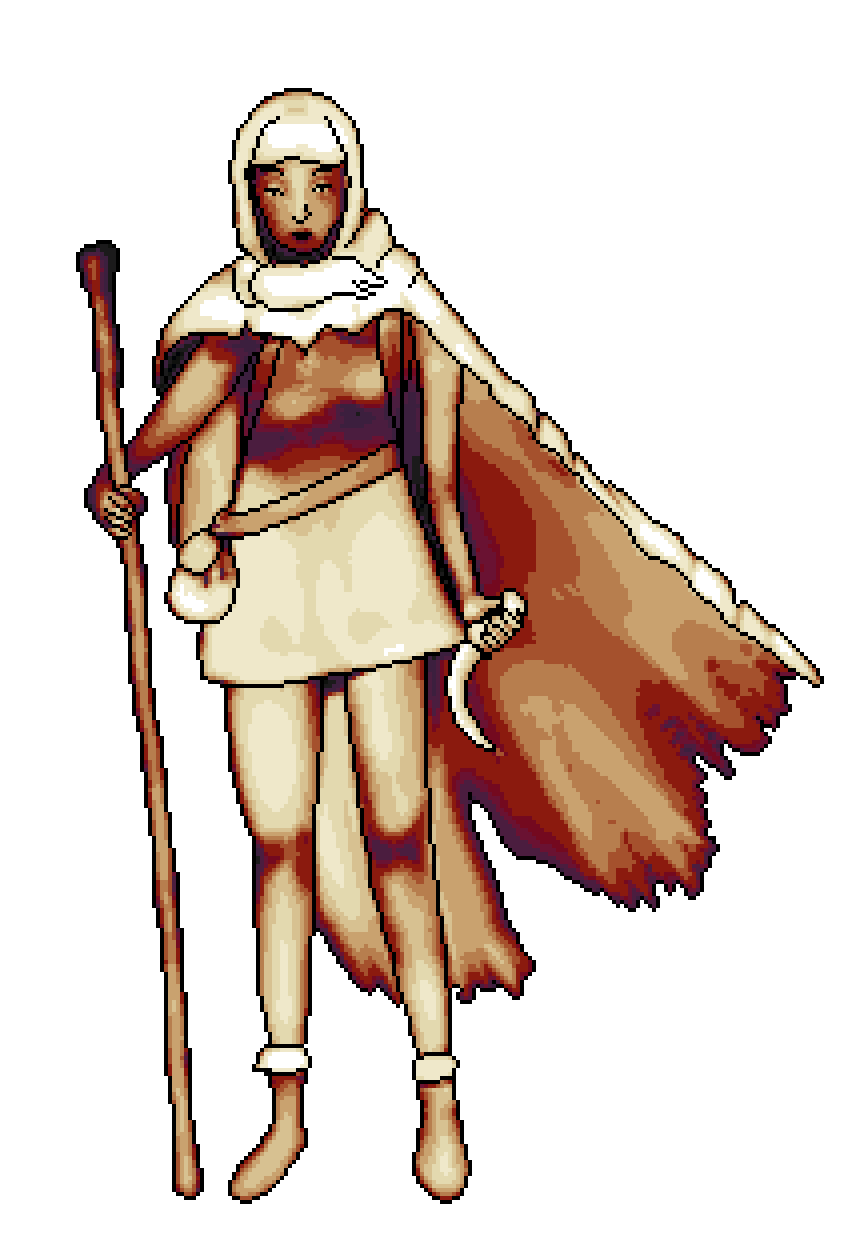
Here’s a comparison between the three pixel/sprite/tile making apps I could find on F-Droid. I know there’s stuff in that vein on Varvara, but I haven’t figured out a good way to run Varvara apps on Android yet, especially in a way where I could get files in and out. (Definitively still interested in that approach though.) So here’s PxerStudio, Pixel Artist, and PixaPencil.
First I tried PxerStudio. My initial review of this was: Okay, I can use this one, but I really hope one of the other options is better. Why?
Because it’s “floaty” and “fidgety” in a way that makes my nerves knot up. This floatingness starts right away even when selecting the resolution (for all three of these apps I used 16×16) requires those aaaaawful number-sliders Android has. It feels horrible trying to get it to land on exactly sixteen.
Same goes for selecting colors: there’s no way to use palettes or entering hex digits or RGB values. There’s a color picker which you’ll have to rely on religiously. So if you reverse-engineer the project format you could open images with a palette base layer to pick from.
Also don’t press “back” by mistake because it might close the whole thing down (without saving, it seemed like,o but I’m not sure).
Placing the actal pixels is the biggest problem. There are three options: a drawing tool (basically a one pixel brush), a line tool, and a box tool. And a flood fill that does work well. The line tool doesn’t actually draw full lines if you go at an angle; it’s really conservative and only places the pixels it’s sure of. So it might only place two or three pixels inbetween long gaps that you’d have to fill in by hand. That’s fine. The biggest lack is a way to just tap in pixels. Tapping on a pixel doesn’t do anything, only dragging does. So I’m constantly adding pixels by mistake when I accidentally drag but where I do want to add pixels, I have to drag. The box-drawing tool is almost the best tool since you can make 1×1 “boxes” to make pixels but that still requires dragging.
There’s full undo support though, and that mitigates a lot of these issues. But wow is this app an anxiety factory for me.
The export options are great (of the three apps this one exports the best) and unique among the three apps is that you can use layers. The layers is a killer feature that might push me into choosing this one over the others.
Okay TL;DR: probably don’t use this Pixel Artist until they implement better export options.
Here we go the opposite direction with an extremely minimalist app that only has one drawing tool: tap on a square (a pixel) to make it the selected color. Long press on a pixel to color-pick from it. No other tools, this is all you’ve got, and the only available size is 16×16 which might be a showstopper for some projects but suits me perfectly.
In addition to the awesome color-pick-by-long-press super power, there’s a predefined palette along one edge (and that’s your only “toolbar”, the palette); you can’t import palettes but you can replace colors by long-pressing them. However, those new colors you can only select by R, G, and B sliders (and no number so you can’t select a specific R, G or B value, just ballpark). If you save or reload a file, you still get the default palettes and your customly added colors are gone. You can still color pick them from the image but you can’t copy picked colors into the palette. So maybe don’t use custom colors except the default palette is bad with no ramps, all colors the same brightness, a single yellow and seven nearly indistinguishable greens.
There’s no zoom option either, so on the Retroid Pocket Classic, the image doesn’t fit without panning (although I can see the whole image by opening the file menu, where it’s embedded) and on the Paper 7 (which has fewer pixels than the RPC so apparently this is determined by display size, not pixel density), there is a huge white margin to the right and below the image.
I can’t comfortably draw with a “tap by tap” app like this (and I hope you like tapping because a 16×16 image requires 256 taps), but if I sketch on 1mm grid paper, I can then “digitalize” those paper sketches by usig this Pixel Artist app as a “data entry tool”. The garish, unramped colors would’ve been fine if if they had at least been distinguishable, since I can re-palette them in the game engine and I’d only be using the app to get a digital representation of a paper sketches and I can use all kinds of colored pens when making the paper sketch versions on grid paper.
Dragging with a single finger pans the image and tapping sets a pixel to the chosen color. There’s no undo at all.
So far some pros and cons: great for quickly placing pixels with precision, but that’s all it can do. Now for what breaks it: exporting the images! Three issues with that:
You need to remember to turn off the grid before exporting, otherwise the grid will be visible in the image (and it’ll have a different resolution so it can fit the grid). Not a dealbreaker but I do want the grid on while drawing (that especially goes for this app with it’s dot-by-dot mental model) so having to turn that off before exporting each image is a chore.
One pixel is not one pixel. It’s display dependent. So images I made on the RPC are 1280×1280 (that’s 80×80 pixels per pixel) while images I made on the Paper 7 are 640 by 640 (so 40 by 40 pixels per pixel). That’s nothing imagemagick can’t fix (it’s only a waste of space and bandwith but I can live with that).
Now to the biggest problem: that big exported picture is a JPEG for some reason! What in the heck! Yeah, yeah, ImageMagick’s convert utility can probably reindex and requantize the images to hopefully dodge any artifacts so the JPEG decision doesn’t have to ruin anything except it also wastes space.
So okay, my lede on Pixel Studio said not to use until they fix exports not literally true because ImageMagick can rescue the image data. Just not easily.
Uh-oh! F-Droid warns that “source code no longer available” for PixaPencil, so I was really hoping it wasn’t gonna be the best of the three. (Turns out the sitaution is that the app has gone proprietary. It’s “source-available” but for our DFSG purposes it might as well be in /dev/null. Except! Older versions can be forked! That’s a distinction I sometimes wish F-Droid would make but maybe that’s splitting hairs. I see that on F-Droid apps and I think oh no there’s been a drive failure and the source code is literally gone (I’ve been there, fam♥︎😭) but what happened instead is that the main dev is making no more DFSG-free updates so may the forks be with you. Lookin at the sourcecode there’s a subpackage named “dao” which is a pretty bad red flag for me.)
Unfortunately it might the best one.
It doesn’t have layers, is the major missing feature that PxerStudio had. Export options are also limited compared to PxerStudio but it’s a good clean PNG where you can select raw (one pixel is one pixel, great for using in the game project) or scaled (one pixels is bigger, great for display and posting). That’s all I need. Other tools can take it from there. The PNG images are in indexed, 8-bit PaletteAlpha format which is perfect for this.
Of the three apps, this is the only one that lets you actually enter any hex triplet color (or I guess hex quadruplet since there’s alpha too). You can even import entire palettes (You need to use a specific website to do that, though. It’s called “Lospec”. You need to paste only the last part of the URL, the “palette identifier”.).
The only way to zoom is the zoom buttons and the only way to pan is the panning tool. Okay, I love that restriction. This means that dragging my finger (or pen but my pen is broken right now) over the screen does only one thing: the selected tool. Tapping pixels to add them is even more reliable than in Pixel Artist (where it semeed like it sometimes did require a little effort), and as I said, Pxer Studio can’t even do that.
The line tool is crisp and reliable and there are a couple of other tools like boxes, flood fill, polylines and so on.
I’ve got to remember than if anything in this section is bad, that’s fine, just don’t use it, it’s a “bonus section” anyway. (For example, the project I’m working on doesn’t benefit from dithering.) There’s mirror symmetry, dither and spray tools, other brush shapes (and your currently selected brush is used when using the line tools). There’s darkening, lightening, and color-inverting the entire image (maybe would’ve been more useful if there had been layers and/or selections).
There’s also a “darken/lighten” tool which I love and hate. Be careful when using it because if you accidentally lift your pen, it re-darkens already darkened squares or re-lightens already lightened ones, and it also lightens any black outlines you have. (Again, no layers…)
It does not stick to the ramps in your palette, is the major problem. Those caveats aside, I’m still thinking I might want to use this tool a lot, to crank out a bunch of sprites quickly: I’ll just make a way simpler hue-only palette for the main flats and then shade them with this darken tool, being more restrictive against lighten since that can mess up the outlines. I can re-palette the sprites in the game engine anyway later. But, this darken/lighten tool is at the expense of a more generic “only replace selected color” draw setting that MS Paintbrush had back in the early 90s. It’s both worse and better because if you’re satisfied with what it does, it’s fewer clicks to add a li’l depth to your images and make them a li’l less NES and a li’l more TG-16.
I also like the “pixel perfect” setting. With it on, I can draw sloppily and it deletes stray pixels after I lift my finger. I love that it’s not the default because it’s pretty surprising behavior, but it’s a great option that I’ll use often if I do go with this app.
My original plan when I got this 1mm grid paper was to enter the
pixels directly into Emacs and writing a li’l something something to
convert it into pixel data (and then I learned that pceas has a
hex-nybble-to-pixel-index importer built in which made this even
easier).
I mean something like:
00A0
00A0
00A0
00A0
(that’s a li’l 4 by 4 toy example, the real entries would be 8 by 8 or 16 by 16.)
I quickly learned that as much as I actually do type stuff in here with the OSK, that might be fine for coding but not so much for this amount of “data entry”.
In other words, I can’t do it on-the-go unless I bring my keyboard. But at home or when I do have my keyboard this might still be the best method for getting paper-sketched ideas into the game! I can choose homerow glyphs or otherwise comfortably-placed glyphs while entering and fix them with a tr filter.
Kind of sucks that the grid paper has “major grid line” every ten lines instead of every eight lines but I can live with that (I’ve already made plenty of sprites with this method and it works fine).
When I still had my desktop computer I loved making pixel art in a combination of Inkscape, MyPaint and GIMP #ChangeTheName. Waaay back in the day I’ve used Synfig also. Inkscape might sound like a bad choice for pixelart and it was, until I found some extensions that made it better. The icons I made for Heartfeed where all made in Inkscape, manually rehinted for every size. (Well, some of them started life in Blender but I did the hinting in Inkscape). Knowing that outlined objects need to start at .5-offset pixel increments while un-outlined objects need to start at integer pixel increments, that sort of stuff is necessary to be aware of when working with Inkscape. It’s definitively not safe-and-good straight out of the box. It’s just that at the time my brain was just really attuned into Inkscape. GIMP #ChangeTheName is also great for color curves, scaling options, applying gradients and so on, and there’s a million formats to export and import, and it’s great for making animations easily.
Then after I moved apartments and couldn’t use my desktop anymore because of lack of physical space and lack of power outlets and I’m relegated to tablets I got CSP for the iPad but I’ve let that subscription lapse. Looking into maybe getting a cross-device renewal later that works on both iPad and Android.
CSP was okay for pixel art actually. I wasn’t that happy with how the one image I made with it turned out, but I was pretty happy with the tools. The “pixel perfect” drawing mode that PixaPencil has would’ve been welcome, but in exchange it’s freeing to be able to use pencil sketching and painting tools for the first iterations and then go down to the nitty gritty for refining them. We get all symmetry lines, skewing, molding, pushing, warping, masking, layer joy we could ever need and can then cook it down to pixel size.
That’s an approach that none of these specialized pixel art apps can do.
It’s the difference between drawing and painting. Sometimes painting feels like molding clay, I love it, I can push and pull, add and sculpt. Sketching has some of the same quality with a loose-enough pencil scribbling approach (I like normal HB pencils the best). Drawing implies laying down the lines exactly where they should be and getting them right in the first try. That’s the mentality the pixel apps require and that’s a pretty huge limitation on all of them. They’re very waterfall and not so iterative.
Nothing I can do on tablet, among the options I’ve found so far, comes close to what I could do on my Debian desktop with MyPaint, Krita, Blender, Inkscape, and GIMP #ChangeTheName. Except for CSP which did come pretty close.
Of the three Android options I’m gonna go with the old version of PixaPencil in the hope of forks. I’m not saying no to the Varvara stuff if I can get them to work on Android although I’m working on a project that uses four-bit color, not two-bit.
If I ever rejoin society I might go trawling on the App Store and Play Store (including considering maybe renewing my CSP subscription).
Definitively not throwing out my 1mm grid paper either. After looking at these pixel apps I’m so glad I got it. I’m sure some of the sprites and tiles will be drawn entirely that way and hand-entered into Emacs, others will be drawn mostly that way, and hand-entered and refined in one of the pixel apps, some will made primarily in the pixel apps based on loose paper sketches, and some won’t use the grid paper at all and that’s fine too. I’m completely overwhelmed by the amount of art I have to make so I really appreciate the multi-faceted approach.